Have you ever wondered what it would take to run a powerful Large Language Model (LLM) completely locally on your own machine—without API keys, monthly cloud subscriptions, data privacy concerns, or rate limits?
For a long time, self-hosting LLMs required wrangling CUDA drivers, compiling C++ runtimes, managing quantized model weights, and configuring server wrappers.
Enter Ollama. Ollama makes running, managing, and interacting with local open-source AI models as simple as running a single terminal command.
Let's use the Richard Feynman Technique—translating complex technical concepts into simple, everyday analogies—to understand how Ollama works, why local AI is a game-changer, and how to build fully private, multimodal applications using Python.
1. Cloud vs. Local AI: The Restaurant Delivery vs. The Personal Chef
To understand why local LLMs are taking over, let's look at how we consume software services.
 Cloud AI is like ordering food delivery from a distant restaurant; Local AI with Ollama is like having a personal chef in your own home kitchen.
Cloud AI (OpenAI, Claude, Gemini): The Restaurant Delivery App
When you use a cloud AI API, it’s like ordering dinner through a food delivery app.
- Convenience: You don't need a stove or kitchen tools. You send a request, pay a fee per order, and your food arrives.
- The Catch: You pay for every single meal. If the delivery service suffers a outage or traffic congestion, you wait. Most importantly, you don't control the kitchen—your personal preferences and data pass through external hands.
Local AI (Ollama): The Personal Chef in Your Kitchen
Running an LLM locally with Ollama is like having a personal chef living in your kitchen.
- Zero Marginal Cost: Once you buy your kitchen appliances (your GPU and RAM), cooking another meal costs zero dollars. You can experiment with 10,000 prompts a day without receiving a bill.
- Total Control & Privacy: The food stays inside your home. No third party ever sees what recipe you're creating or what ingredients (data) you're using.
- Offline Access: Even if the outside internet goes completely offline, your chef keeps cooking.
2. Why Local LLMs? The Personal Vault
Beyond zero recurring API fees, the biggest driver for local AI is Privacy and Sovereignty.
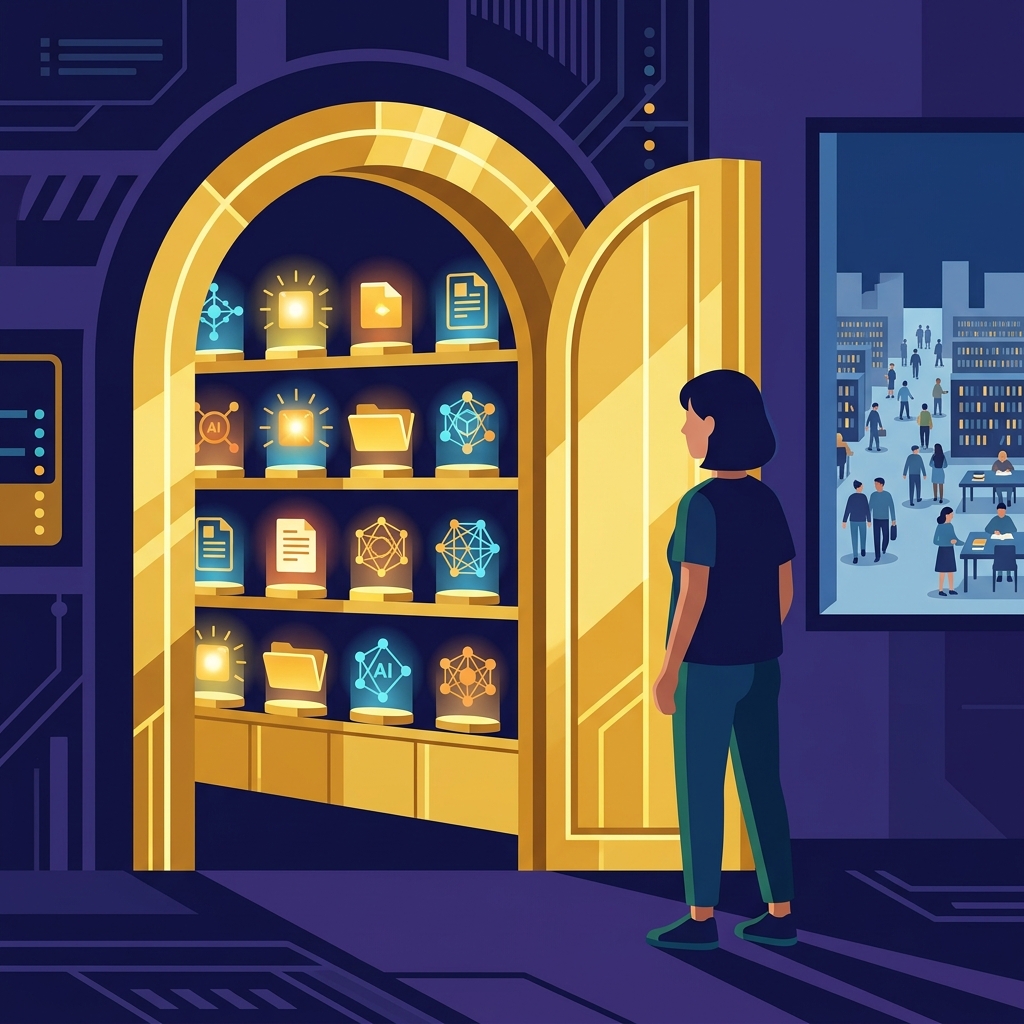 A local LLM creates a private vault for your sensitive documents, medical records, and proprietary source code.
Think of your private data—company source code, financial spreadsheets, medical records, or personal journals—like gold bars.
- Cloud AI: Sending sensitive data to a cloud API is like walking into a busy public library and handing your diary to a librarian to summarize. Even with privacy guarantees, your data leaves your physical perimeter.
- Local AI (Ollama): Running Ollama is like building a steel vault in your basement. The model weighs sit on your local hard drive, and all inference happens inside your machine's VRAM/RAM. Nothing leaves your network interface card.
3. Ollama's Secret Sauce: The Universal Engine
How does Ollama make running models like Llama 3, Mistral, and LLaVA so effortlessly fast across macOS, Linux, and Windows?
Under the hood, Ollama acts as a streamlined wrapper around llama.cpp—a high-performance C/C++ engine optimized for CPU and GPU inference.
Hardware Backends:
- Apple Silicon (macOS): Leverages unified memory and Apple Metal acceleration for lightning-fast inference.
- NVIDIA GPUs (Linux/Windows): Uses CUDA acceleration, offloading model layers directly into VRAM.
- AMD GPUs: Uses ROCm drivers for hardware acceleration.
- CPU Fallback: Runs models on system RAM if no dedicated GPU is available.
4. Mastering Ollama Commands: CLI & Interactive REPL Masterclass
Working with models in Ollama feels remarkably like working with Docker containers or database shells. There are two distinct layers of commands:
- System CLI Commands: Executed from your system terminal shell (
bash,zsh, or PowerShell) to manage model weights, background daemons, and system resources. - Interactive REPL Slash-Commands: Executed inside an active
ollama runsession (at the>>>prompt) to configure model parameters, inspect system prompts, save sessions, and manage conversation context on the fly.
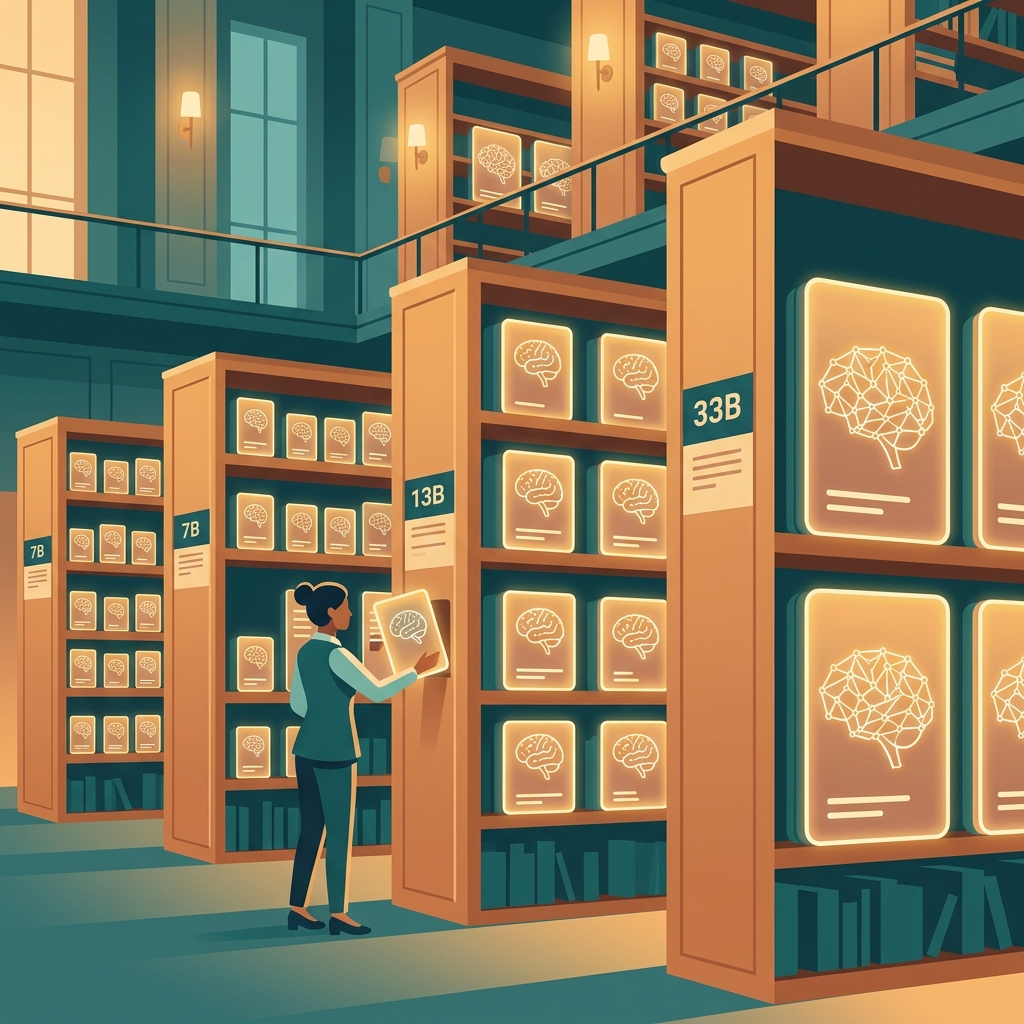 Ollama organizes models like a standardized library catalog, allowing you to pull, run, swap, and inspect model weights instantly.
Part A: Terminal CLI Command Reference
Think of the terminal CLI as the warehouse manager. It controls what model weights exist on disk, what processes are active in VRAM, and how the background engine runs.
1. Background Engine & Process Management
# Start the background daemon server (runs on http://localhost:11434)
ollama serve

# View currently loaded models actively occupying GPU VRAM or CPU RAM
ollama ps
[!WARNING] Troubleshooting
Error: listen tcp 127.0.0.1:11434: bind: address already in useIf you run
ollama serveand see this error:
Couldn't find ~/.ollama/id_ed25519. Generating new private key: This is normal initial behavior. Ollama generates a local SSH Ed25519 keypair on first launch to securely identify your client with model registries.bind: address already in use: This means Ollama is already running as a background service on port11434! You do not need to runollama serveagain.
- Verify it's active: Run
ollama listorcurl http://localhost:11434. If it returns"Ollama is running", you're good to go—just runollama run llama3directly.- If you need to restart the server: Kill the existing background process first:
- Linux / macOS:
pkill ollamaorsudo systemctl stop ollama- Windows: Quit the Ollama icon from your system tray or end
ollama.exein Task Manager.
[!TIP]
ollama psis extremely useful for checking memory consumption. It displays the model name, size, processor allocation (e.g.,100% GPUvs50%/50% CPU/GPU), and when the model will automatically unload from VRAM due to inactivity.
2. Managing Model Weights on Disk
# Download a model from the registry without launching an interactive chat
ollama pull llama3

# List all locally downloaded models on your machine
ollama list

# Duplicate a model locally (great for creating a backup before editing system prompts)
ollama cp llama3 my-llama3-backup

# Remove model weights from disk to free up storage space
ollama rm my-llama3-backup
3. Model Inspection & Custom Modelfiles
# Inspect model metadata, parameter counts, system prompt, and license
ollama show llama3

# Display only the Modelfile underlying a model
ollama show --modelfile llama3

# Build a new custom model from a local Modelfile
ollama create my-custom-assistant -f ./Modelfile
Part B: Interactive REPL Slash-Commands (>>>)
When you run ollama run llama3, you enter Ollama's interactive Read-Eval-Print Loop (REPL). Think of this like entering an interactive psql or python shell.
If you type /? or /help inside the interactive session, Ollama displays its built-in command menu:
% ollama run llama3
>>> /?
Available Commands:
  /set          Set session variables
  /show         Show model information
  /load <model> Load a session or model
  /save <model> Save your current session
  /clear        Clear session context
  /bye          Exit
  /?, /help     Help for a command
  /? shortcuts  Help for keyboard shortcuts

Use """ to begin a multi-line message.
Let's break down every slash-command in detail:
1. Session Tuning: /set
The /set command allows you to tune hyperparameters and behavior on the fly without restarting the session.
# Adjust creative randomness (0.0 = deterministic/coding, 1.0 = creative prose)
>>> /set parameter temperature 0.2

# Set top_p (nucleus sampling threshold)
>>> /set parameter top_p 0.9

# Fix random seed for 100% reproducible benchmark testing
>>> /set parameter seed 42

# Dynamically change or override the system prompt persona
>>> /set system "You are a principal Rust kernel engineer. Answer with maximum technical precision."

# Enable verbose mode (prints token generation speed, prompt eval time, and VRAM load time after each response)
>>> /set verbose
[!NOTE] Enabling
/set verbosedisplays key benchmarks after every answer, such as eval rate (tokens per second) and prompt evaluation speed, helping you optimize hardware performance.
2. Dynamic Model Inspection: /show
Want to inspect the model's internal setup while chatting? Use /show:
>>> /show info       # Displays quantization format, family, and architecture
>>> /show system     # Displays current active system prompt
>>> /show license    # Displays license terms (e.g., Llama 3 Community License)
>>> /show template   # Displays raw prompt template wrapping user messages
3. Model & State Persistence: /load & /save
You can switch models or persist tuned sessions directly inside the REPL:
# Switch to another installed model in the same session without exiting
>>> /load mistral

# Save current session (including system prompt and tuned parameters) as a new named model
>>> /save my-tuned-rust-expert
4. Context Management & Exit: /clear & /bye
# Wipe conversation memory context while keeping the model warm in VRAM
>>> /clear

# Cleanly exit the interactive shell back to your terminal
>>> /bye
5. Multi-line Inputs (""")
By default, pressing Enter submits your message. To paste multi-line documents, code blocks, or structured prompts, enclose your text in triple quotes ("""):
>>> """
Here is a multi-line document I want you to review:
1. Function A handles data parsing.
2. Function B writes to disk.

Please summarize potential race conditions.
"""
Hardware Rules of Thumb for Model Sizes
When picking a model size (measured in billions of parameters, e.g., 7B, 13B, 70B), memory is key:
- 7B Models (e.g., Llama 3 8B, Mistral 7B): Requires ~8 GB of RAM/VRAM.
- 13B Models: Requires ~16 GB of RAM/VRAM.
- 70B Models: Requires ~32–64 GB of VRAM for smooth speed.
5. Python Integration: The Walkie-Talkie API
Command-line chats are fun, but the true power of Ollama comes from building custom Python applications.
When Ollama runs (ollama serve), it exposes a lightweight, local HTTP REST API on http://localhost:11434.
 Your Python script talks to the local Ollama server like a walkie-talkie exchanging JSON messages over HTTP.
Step-by-Step: One-Off Text Generation in Python
Here is how you send a prompt to Ollama's /api/generate endpoint using Python's standard requests library:
import requests

# 1. Ollama local REST endpoint
api_endpoint = 'http://localhost:11434/api/generate'

# 2. Request payload
data = {
    'model': 'llama3',
    'stream': False,
    'prompt': 'Act as a technical editor. Explain quantum computing in one short sentence.'
}

# 3. Send HTTP POST request
response = requests.post(api_endpoint, json=data)

# 4. Handle response
if response.status_code == 200:
    result = response.json()
    print("Response from Ollama:")
    print(result['response'])
else:
    print(f"Error: {response.status_code}")
6. Multimodal Models: Teaching the AI to See
Text is only half the story. Multimodal models like LLaVA (Large Language and Vision Assistant) allow you to feed both text and images into your local LLM.
 Multimodal models decode image binary data into Base64 strings, allowing the LLM to 'see' and describe visual scenes locally.
How Image Passing Works
Because HTTP JSON payloads are text-based, binary image files (.jpg, .png) are converted into a Base64 string before being sent in the images array field.
Runnable Python Script: Local Visual Inspection (generate_multimodal.py)
import requests
import base64

def encode_image_to_base64(image_path):
    """Reads a local image and converts it into a Base64 UTF-8 string."""
    with open(image_path, 'rb') as image_file:
        binary_data = image_file.read()
        base64_bytes = base64.b64encode(binary_data)
        return base64_bytes.decode('utf-8')

# Load and encode image
image_str = encode_image_to_base64('sample_bird.jpg')

# Prepare multimodal request to LLaVA
api_endpoint = 'http://localhost:11434/api/generate'
payload = {
    'model': 'llava',
    'stream': False,
    'prompt': 'Identify the species in this photograph and describe its key features.',
    'images': [image_str]
}

response = requests.post(api_endpoint, json=payload)
if response.status_code == 200:
    print(response.json()['response'])
7. Chat API & Memory: Building a Stateful Chatbot
Unlike /api/generate (which treats every request in isolation), the /api/chat endpoint accepts a messages array containing the full conversation history. This allows you to maintain context across turns.
Here is a complete, stateful terminal chatbot script (chatbot.py):
import requests

api_endpoint = 'http://localhost:11434/api/chat'
messages = [
    {'role': 'system', 'content': 'You are a helpful software architecture mentor. Keep answers concise.'}
]

print("--- Local Ollama Chatbot (Type 'exit' to quit) ---")

while True:
    user_input = input("\nYou: ")
    if user_input.lower() in ['exit', 'quit']:
        break

    # Append user message to history
    messages.append({'role': 'user', 'content': user_input})

    # Call Ollama Chat API
    response = requests.post(api_endpoint, json={
        'model': 'llama3',
        'stream': False,
        'messages': messages
    })

    if response.status_code == 200:
        assistant_message = response.json()['message']
        print(f"\nAssistant: {assistant_message['content']}")
        # Append assistant response back to history for continuous memory
        messages.append(assistant_message)
    else:
        print("Failed to reach Ollama API.")
8. Real-World Automation: Cataloging Images to CSV
Let's combine everything we've learned into a real-world Python automation script: scanning a directory of local images, passing each to LLaVA, and auto-generating a structured bird_catalog.csv file.
import requests
import base64
import csv
import os

def image_to_base64(file_path):
    with open(file_path, 'rb') as f:
        return base64.b64encode(f.read()).decode('utf-8')

def catalog_image(image_path):
    b64_str = image_to_base64(image_path)
    response = requests.post('http://localhost:11434/api/generate', json={
        'model': 'llava',
        'stream': False,
        'prompt': 'Output ONLY the name of the bird species in this image and nothing else.',
        'images': [b64_str]
    })
    if response.status_code == 200:
        return response.json()['response'].strip()
    return "Unknown"

# Loop over images directory and output to CSV
images_folder = './birds'
output_csv = 'bird_catalog.csv'

if os.path.exists(images_folder):
    with open(output_csv, mode='w', newline='') as csv_file:
        writer = csv.writer(csv_file)
        writer.writerow(['Filename', 'Species'])

        for filename in os.listdir(images_folder):
            if filename.lower().endswith(('.png', '.jpg', '.jpeg')):
                full_path = os.path.join(images_folder, filename)
                species = catalog_image(full_path)
                print(f"Cataloged {filename} -> {species}")
                writer.writerow([filename, species])
Summary & Key Takeaways
| Concept | Feynman Analogy | Tech Core |
|---|---|---|
| Local LLM | Personal Chef | llama.cpp C++ engine on hardware |
| Privacy | Steel Vault | On-device VRAM/RAM inference |
| Model Registry | Library Catalog | ollama pull / quantized model weights |
| Python API | Walkie-Talkie | HTTP POST /api/generate and /api/chat |
| Multimodal | Magnifying Glass | Base64 encoded image strings to LLaVA |
References & Further Reading
This guide is inspired by foundational hands-on literature and documentation:
- Ollama in Action: Build Fully Private Multimodal AI Apps — Comprehensive reference manual covering CLI management, Python integration, Base64 vision pipelines, and CSV batch processing.
- Ollama Official Documentation (ollama.com) — Official installation guides, hardware specs, and model library catalog.